PowerShell

PowerShell Modules Maintenance - Updated

Introduction

Almost a year ago, I wrote an article on this topic. Since it appeared in my search results for the same question again (that’s why I am blogging - not enough, to be honest), I took the opportunity to review the article and post an updated version with an improved script.

It’ll still update installed modules and remove older version in the C:\Users\<username>\Documents\PowerShell\Modules folder, but in a more userfriendly way :-)
PowerShell Modules Maintenance

Introduction

From time-to-time I am updating all installed PowerShell modules on my dev-machines. This can lead to a large amount of used disk space, as old versions are kept on the drive. In this post, I want to share the scripts for the two tasks. After updating modules, I noticed a large amount of data is stored in my C:\Users\<username>\Documents\PowerShell\Modules folder. To be specific, the folder eats up 3.1GB of space. Therefore I needed a cleanup script as well :-)

No Default Subscription?

Set-AzureWebsite : No default subscription has been designated. Use Select-AzureSubscription -Default to set the default subscription.

*doh* Again I’ve used PowerShell comandlets for Azure classic instead of Resource Manager 🙁

Reminder: Always check for the magic “Rm” chars in the command, if a resource cannot be found.

Connection Problems to a Secure Service Fabric Cluster

To be able to connect to a secure Service Fabric Cluster via PowerShell, you need to import the certificate specified into your personal certificate store. Otherwise an Exception will be thrown. Unfortunately the Exception does not point into the right direction 🙁

So in case you get an Exception like this

Connect-ServiceFabricCluster : An error occurred during this operation. Please check the trace logs for more details.
At line:1 char:1
+ Connect-ServiceFabricCluster -ConnectionEndpoint xyz-sf-de …
+ ~~~~~~~~~~~~~~~~~~~~~~~~~~~~~~~~~~~~~~~~~~~~~~~~~~~~~~~~~~~~~~~~~~~~~
+ CategoryInfo : InvalidOperation: (:) [Connect-ServiceFabricCluster], FabricException
+ FullyQualifiedErrorId : CreateClusterConnectionErrorId,Microsoft.ServiceFabric.Powershell.ConnectCluster

Need users in your dev environment?

Often, you’ll need some users with data like picture and manager in your new development environment. Since you usually recycle your dev AD, this doesn’t happen frequently. But if you have to set up a new domain, you’ll want testusers with data.

I don’t want to search again, because I found a great resource for creating users here: http://mrhodes.net/2011/10/25/adding-285-contoso-users-with-pictures-to-your-development-environment-active-directory/

Have fun with PowerShell

Create the default groups via PowerShell

If your site is missing the three default groups “Visitors”, “Members” and “Owners”, you can create them easily with PowerShell or the Object Model.

Add-PSSnapin Microsoft.SharePoint.PowerShell

$web = Get-SPWeb https://your.site.url
if ($web.AssociatedVisitorGroup -eq $null) {
    Write-Host 'The Visitor Group does not exist. It will be created...' -ForegroundColor DarkYellow
    $currentLogin = $web.CurrentUser.LoginName

    if ($web.CurrentUser.IsSiteAdmin -eq $false){
        Write-Host ('The user '+$currentLogin+' needs to be a SiteCollection administrator, to create the default groups.') -ForegroundColor Red
        return
    }

    $web.CreateDefaultAssociatedGroups($currentLogin, $currentLogin, [System.String].Empty)
    Write-Host 'The default Groups have been created.' -ForegroundColor Green
} else {
    Write-Host 'The Visitor Group already exists.' -ForegroundColor Green
}


The SharePoint Solution Deployer

Deploying Solutions can be a …. (fill in as you wish).

The SharePoint Solution Deployer offers a great opportunity to writing your own scripts. The existing functionality should match your needs to deploy SharePoint Solutions. If not, the “framework” can be extended with custom Extensions or simple PowerShell code.

I’ve written two Extensions, which let you enable and disable features upon deployments and reset files to their site definitions (aka ReGhost).

Use a XML-file for configuration in PowerShell scripts

Time for some PowerShell!

Almost every PowerShell script need some configuration parameters. With this post I want to show one way, there are others ;-), to parse a config file in XML format and use the values later.

The solution I’m going to show to you contains three files. A PowerShell script, a XML configuration file and a helper PowerShell file that contains a function to parse the config file.

Start / Stop SharePoint Services via PowerShell

If you have installed SharePoint on your workstation, you might want to start the services only in case of active development. Otherwise the services consume memory and other resources.

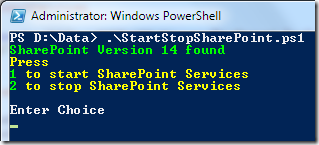
The PowerShell script in this post will allow you to easily start and stop all required services for a local SharePoint Installation.

image

It will detect if you’ve installed SharePoint 2007/WSS, SharePoint 2010 or SharePoint 2013. Just copy the code below to a file, name it StartStopSharePoint.ps1 (yes, very creative :-)) and call it from a PowerShell (you don’t need the SharePoint Management PowerShell).

Use Powershell ISE for SharePoint 2010

To be able to use the ISE for SharePoint, you can configure it to load the SharePoint cmdlets automatically.

Scot Hillier wrote a great article about it. Read “Setting up PowerShell ISE for SharePoint 2010”.

If you only want to use the SharePoint cmdlets once, you can register them with this two lines:

If ((Get-PSSnapIn -Name Microsoft.SharePoint.PowerShell -ErrorAction SilentlyContinue) -eq $null )
{ Add-PSSnapIn -Name Microsoft.SharePoint.PowerShell }

Mastering your Hyper-V R2 Core Server

If you like – and use – Hyper-V is out of scope of this post. So let’s assume you have a Hyper-V core installation, as it is free and works great 🙂

Microsoft® Hyper-V™ Server 2008 R2 is a stand-alone hyper-visor based virtualization product which includes Live migration.

Download: http://www.microsoft.com/download/en/details.aspx?displaylang=en&id=3512 (about 1GB)

OK. That was the marketing part.

Many people have great respect for a server, which has no GUI. At least not the way we know “Windows Servers”.

How To install SharePoint 2010 prerequisites automatically

SharePoint 2013:

If you want to install the prerequisites for SharePoint 2013, see here: Installing SharePoint 2013 Prerequisites Without an Internet Connection

SharePoint 2010:

Don’t leave if you read “Powershell” and think “Oh my. Why does it take Powershell to do this?”. Powershell is easy to use and a great tool for this task.

This post is about installing all required components that are needed for a SharePoint 2010 installation (Hardware and software requirements (SharePoint Server 2010)).