
Custom assemblies for the Reporting Services 2005
Even if the Reporting Services are very powerfull, you might get to the point where you have to extend the building functionality. So why not write your own custom assembly with some additional code?
Create your assembly like this:
1: using System;<br> 2: using System.Security.Permissions;<br> 3: using Microsoft.SharePoint;<br> 4: <br> 5: public class MyNamespace<br> 6: {<br> 7: public class ReportingExtension<br> 8: {<br> 9: public ReportingExtension()<br> 10: {<br> 11: }<br> 12: <br> 13: public static string HelloWorld()<br> 14: {<br> 15: return "Hello World.";<br> 16: }<br> 17: <br> 18: [EnvironmentPermission(SecurityAction.Assert, Unrestricted = true)]<br> 19: [Microsoft.SharePoint.Security.SharePointPermission(SecurityAction.Assert, Unrestricted = true)]<br> 20: public static string getSomeListItem(string url, int itemID)<br> 21: {<br> 22: string returnvalue = string.Empty;<br> 23: try<br> 24: {<br> 25: using (SPSite site = new SPSite(url))<br> 26: using (SPWeb web = site.OpenWeb())<br> 27: {<br> 28: // do something<br> 29: returnvalue = "";<br> 30: }<br> 31: }<br> 32: catch (Exception ex)<br> 33: {<br> 34: return ex.ToString();<br> 35: }<br> 36: <br> 37: return returnvalue;<br> 38: }<br> 39: }<br> 40: }
Updated Wiki Webpart
Please use my custom field type. It is more flexible –> http://www.hezser.de
I updated my Wiki Webpart. For all of you who don’t know what it does:
The normal Wiki Edit Form misses the ability to upload pictures. My Webpart, which has to be included to the EditForm.aspx, allows you to upload a picture. It also creates a link in your Wiki post, which displays the uploaded image.
This release of the Webpart is multi lingual. Meaning it will present text to the user in english and german. If you would like this Webpart in your language, drop me a note 🙂
updated SDKs
The updated SDKs are now available for downloading.
Get form Url from a list
Whenever you have an ID from a list item, you might want to create a link to its DispForm or EditForm. But how do you get the Url to the forms?
1: SPList list = something;
<span class=lnum> 2: </span>list.Forms[PAGETYPE.PAGE_DISPLAYFORM].Url;
Create an eventlog entry
For exception handling it is good practice to write errors to the eventlog.
EventLog.WriteEntry(“SharePoint.Error”, errorText, EventLogEntryType.Error);
Since SP1 for Windows Server 2003 “the normal user” is not allowed to write to the eventlog. James Kovacs wrote a great article about the problem.
(Remember to create your eventlog source, if you have your own!)
1: if(!EventLog.SourceExists(“SharePoint.Error”, ".")) {
<span class=lnum> 2: </span> EventLog.CreateEventSource(<span class=str>"SharePoint.Error"</span>, <span class=str>"Application"</span>, <span class=str>"."</span>);
3: } How to get LookupField Information from a listItem
If you want the ID or the value form a LookupField, you can get it easily with this code snippet:
SPListItem item = getitsomewhare… SPFieldLookupValue lf = (SPFieldLookupValue) item.ParentList.Fields.GetField(_FieldName).GetFieldValue( item.GetFormattedValue(_FieldName));
if you got the field, fetch its properties via
if (lf == null) { int itemID = lf.LookupId; string itemValue = lf.LookupValue; }
Have fun ;-)
Display a website, which requires authentification
I started to write a Webpart, which shows the content of a remote website. You can specify logon information, as well as proxy information.
**It is not ready yet! But I was asked for it. So I will publish it unfinished!
**

Get a listitem by ID
Fetching a listitem by ID will generate an error, if the a listitem with the ID does not exist. To avoid this exception, you can get a listitem by id by searching for it:
private SPListItem GetListItem(SPList List, int ListItemID) { try { string defaultView = List.DefaultView.Title; SPQuery query = new SPQuery(List.Views[defaultView]); string caml =String.Format("
", {0}
ListItemID); query.Query = caml; SPListItemCollection results = List.GetItems(query); if (results.Count == 1) { return results[0]; } } catch (Exception ex) { _ErrorMessage +=
String.Format(“List "{0}" does not contain an item with the id "{1}".
{2}",
List.Title, ListItemID, ex.Message); } return null; }
Display a single listitem
You can display multiple list items with SharePoint and SharePoint Designer quite easy. But how do you display a single listitem? I worte a Webpart, which does this. If there are more than one listitem, you can page through them. And if you like, you can pass an itemid via a Webpart connection.
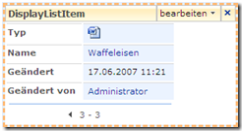
In the Webpart properties you can select the list/library. If you like, you can specify a view other than the default view.
Setting the masterpage Url (Update)
I updated my tool to set the masterpage Url. Now you can set the masterpage Url for a Web and its subwebs only.

Create/Rename/Modify content types
Some content types are hidden. This makes it hard to create a new content type, which inherrits from e.g. the “event”. Via the object model it is very easy to create a content type, which uses e.g. “event” as parent.
SPSite site = new SPSite(
http://serverurl);
SPContentType parentContentType = site.RootWeb.ContentTypes[“Event”];
SPContentType newType = new SPContentType(parentContentType, site.RootWeb.ContentTypes, “newName”);
site.RootWeb.ContentTypes.Add(newType);
Because creating a new content type is just not enough, I wrote a little console application, which lets you create, rename and delete content types for a sitecollection:
Setting the masterpage Url
Masterpages are great. You can change the appearance from your website very easy by modifying the default.master masterpage in the root of your sitecollection. But how do you get all pages beneath to use the same masterpage? Some pages use their own masterpage library, and ignore the one from the sitecollection rootsite.
With this little tool, you can set the masterpage Url for all subwebs of a sitecollection to the masterpage Url from your rootweb, or some url you specify.
Compare SharePoint Lists
With this Tool you can compare two SharePoint Lists. E.g. if you have a test Server and a live Server, you want to know if you created all your Fields with the correct type.
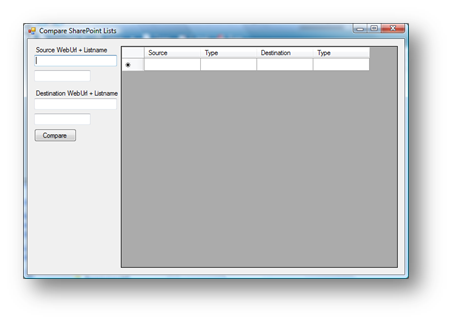
 You can download this tool
here.
You can download this tool
here.
**Update:
** Here is an example what you have to write in the fields:
http://sourcesite/web/subweb
listnumberone
http://sourcesite/web/anothersubweb
listnumbertwo
How to use the SharePoint Web Controls
SharePoint brings its own controls, which can be used to display list items. In this article I want to show you how to use them in a Webpart. It  took me a while to figure this out, because the documentation is kind of incomplete L…
OK. Lets start. First lets find out which SharePoint Web Control belongs to which data type in SharePoint.
SharePoint Web Control
|
SharePoint data type Write a SPFieldUserIf you have a list which contains a SPFieldUser field (with multiple selection), you can add users too it with the following code: using (SPSite site = new { using (SPWeb web = site.AllWebs[“Web”]) } |