Get a listitem by ID
Fetching a listitem by ID will generate an error, if the a listitem with the ID does not exist. To avoid this exception, you can get a listitem by id by searching for it:
private SPListItem GetListItem(SPList List, int ListItemID) { try { string defaultView = List.DefaultView.Title; SPQuery query = new SPQuery(List.Views[defaultView]); string caml =String.Format("
", {0}
ListItemID); query.Query = caml; SPListItemCollection results = List.GetItems(query); if (results.Count == 1) { return results[0]; } } catch (Exception ex) { _ErrorMessage +=
String.Format(“List "{0}" does not contain an item with the id "{1}".
{2}",
List.Title, ListItemID, ex.Message); } return null; }
Display a single listitem
You can display multiple list items with SharePoint and SharePoint Designer quite easy. But how do you display a single listitem? I worte a Webpart, which does this. If there are more than one listitem, you can page through them. And if you like, you can pass an itemid via a Webpart connection.
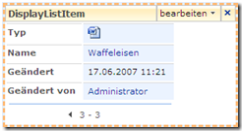
In the Webpart properties you can select the list/library. If you like, you can specify a view other than the default view.
SQL Server 2005 Express Edition & Reporting Services
The Reporting Services shipped with the Express Edition do not support all features. Unfortunately you can only access a local SQL instance. You can not use XML as Datasource, so no SharePoint Reporting 🙁
A list of supported and unsupported features can be found here.
Setting the masterpage Url (Update)
I updated my tool to set the masterpage Url. Now you can set the masterpage Url for a Web and its subwebs only.

Create/Rename/Modify content types
Some content types are hidden. This makes it hard to create a new content type, which inherrits from e.g. the “event”. Via the object model it is very easy to create a content type, which uses e.g. “event” as parent.
SPSite site = new SPSite(
http://serverurl);
SPContentType parentContentType = site.RootWeb.ContentTypes[“Event”];
SPContentType newType = new SPContentType(parentContentType, site.RootWeb.ContentTypes, “newName”);
site.RootWeb.ContentTypes.Add(newType);
Because creating a new content type is just not enough, I wrote a little console application, which lets you create, rename and delete content types for a sitecollection:
How to make Content Type Searchable in a search scope
Content Types are great to identify your different types of documents and list items. But how can you search for them?
In this article I want to show you how to search for your content type via a search scope.
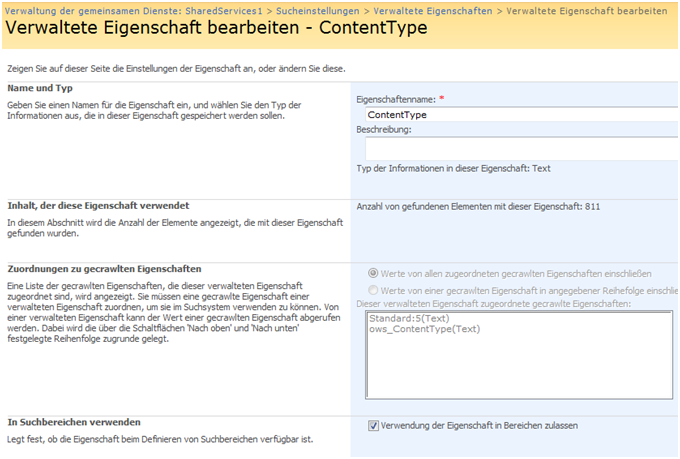
- First lets create a new content type “contracts”. Go to the rootweb of your sitecollection, and create a new content type:
- Next, add the new content type to a (new) documentlibrary.
- Add some documents with the content type “contract”
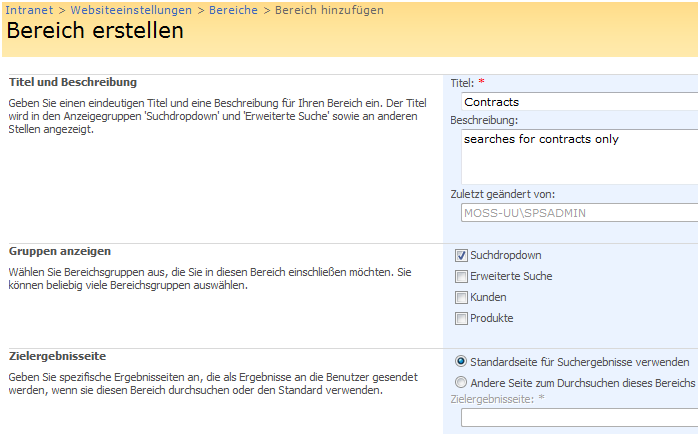
- In order to be able to search von content types, we have to change the managed property “Content Type” in the Shared Services Provider Search Settings. With default settings, this property is not usable in search areas.
- To change this setting, go to your Shared Services Provider, Search settings, managed Properties.
Setting the masterpage Url
Masterpages are great. You can change the appearance from your website very easy by modifying the default.master masterpage in the root of your sitecollection. But how do you get all pages beneath to use the same masterpage? Some pages use their own masterpage library, and ignore the one from the sitecollection rootsite.
With this little tool, you can set the masterpage Url for all subwebs of a sitecollection to the masterpage Url from your rootweb, or some url you specify.
Compare SharePoint Lists
With this Tool you can compare two SharePoint Lists. E.g. if you have a test Server and a live Server, you want to know if you created all your Fields with the correct type.
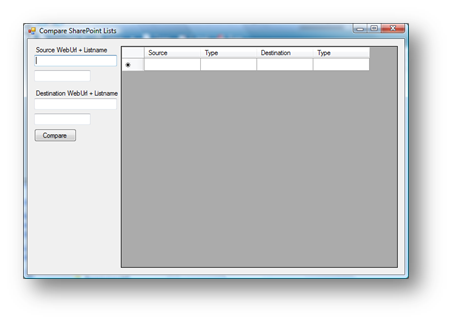
 You can download this tool
here.
You can download this tool
here.
**Update:
** Here is an example what you have to write in the fields:
http://sourcesite/web/subweb
listnumberone
http://sourcesite/web/anothersubweb
listnumbertwo
How to use the SharePoint Web Controls
SharePoint brings its own controls, which can be used to display list items. In this article I want to show you how to use them in a Webpart. It  took me a while to figure this out, because the documentation is kind of incomplete L…
OK. Lets start. First lets find out which SharePoint Web Control belongs to which data type in SharePoint.
SharePoint Web Control
|
SharePoint data type Page Viewer Webpart with auto adjusting heightMart Muller wrote a great article about the page viewer Webpart. If you put the JavaScript onto the page which is displayed inside the page viewer Webpart, it will auto adjust its height. http://blogs.tamtam.nl/mart/SharePointPageViewerAutomaticallyAdjustIFrameHeight.aspx Write a SPFieldUserIf you have a list which contains a SPFieldUser field (with multiple selection), you can add users too it with the following code: using (SPSite site = new { using (SPWeb web = site.AllWebs[“Web”]) } Ajax Webpart displays Webservice dataIn this post I want to show how to create an Ajax Webpart, which receives its data from a Webservice – and until the data arrived – shows a status bar. As base for the Webpart, I took the one from Mark Collins and his great article http://sharethispoint.com/archive/2006/11/15/Build-web-parts-with-ajax.aspx. The approach is to render the Webpart with only a , and let the client – after it finishes querying the Webservice – fill the data into the previously created.
Webpart DevelopmentVisual Studio ExtensionsIf you want to write your own Webpart, you can start from scratch with a Class Library, or use the templates from http://www.microsoft.com/downloads/details.aspx?FamilyID=19f21e5e-b715-4f0c-b959-8c6dcbdc1057&DisplayLang=en The downside of this VS templates is, that they can only be used on a computer, which has SharePoint installed, and you cannot open a project created with the VS templates with a VS on which the templates are not installed. Server side controlsIshai Sagi wrote a great article about Webpart development. His article is about server side controls and data binding in Webparts. Extend the simple WebpartNow that we know how to create a simple Webpart, we want to add more functionality to it. Let us start with some Controls.
Declare a Controlpublic { private CreateChildControlsThis method creates the control. After the creation, we will be able to access the control from elsewhere, to modify its properties or its content. Deploy and Debug a Webpart to your SharePoint ServerTo deploy a Webpart to a SharePoint Installation, complete the 3 steps beneath:
Copy the dll from your Webpart to the bin folder of a webapplicationCopy your dll to the bin folder of your IIS virtual server directory. In my case this is “C:\Inetpub\wwwroot\wss\VirtualDirectories\45079\bin”. |