
Configuring SQL Server 2008 Reporting Services
Reporting Services Configuration Wizard
The SQL Server 2008 Reporting Services do not need an Internet Information Server anymore. You can host your Reports website from within Reporting Services only. If you have installed the IIS, you can still use Reporting Services, because it will register itself via HTTP.sys.
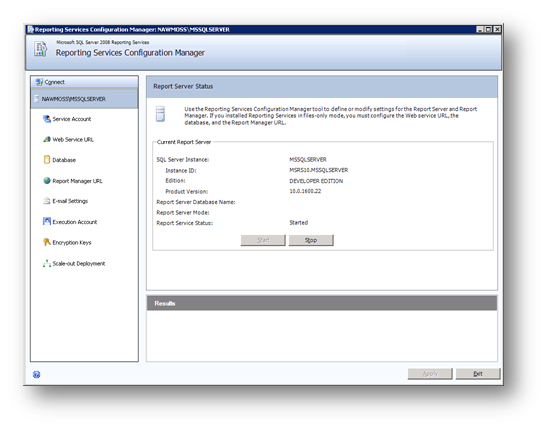
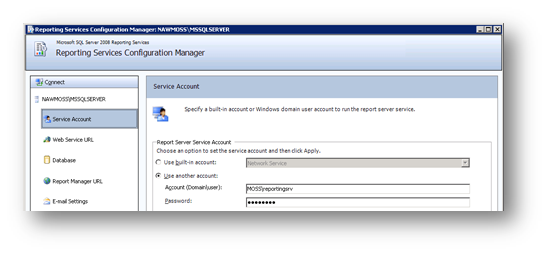
Because we configured the service account during the installation process, it is already configured.
Quote from the SQL Server 2008 Online Books:
Install SQL Server 2008
Installing the new SQL Server is not very different from installing older version. You have some new options, don’t have to change the media anymore and have some nice wizards.
The SQL Server 2008 requires some components, which will be installed automatically during the setup process.
- .NET Framework 3.5 SP1 (installed before SQL Server is being installed)
- Hotfix for Windows Server 2003 (KB942288-v4 will be installed)
- Powershell 1.0 (will be installed later)
- Hotfix for Windows Server 2003 (KB942288-v4 will be installed)
CopyTool for SharePoint – Update
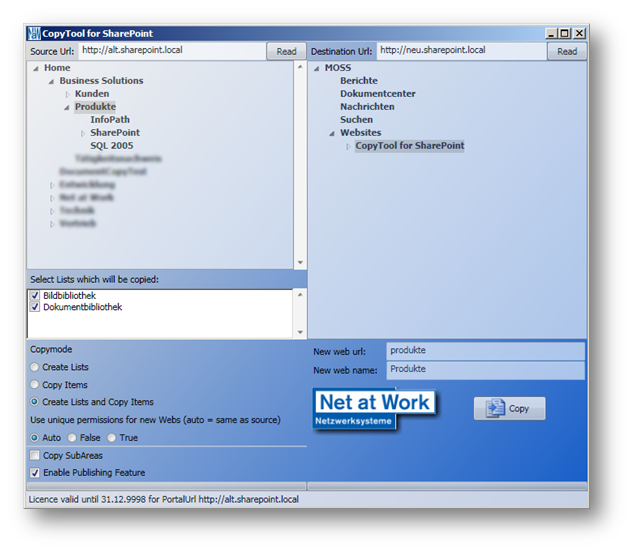
Hello everybody. I have updated the “Net at Work CopyTool for SharePoint”.
Some of the new features are:
- GUI: You can now interact with the program with a nice WPF GUI
-
Copy Subareas: If you want to copy an Area with its Subareas, you can do so now
- Copy only selected lists: Now you can copy only certain lists, and not a whole Area as smallest part
As always, you can find more information here.
-
Use SharePoint RSS feeds with absolute links
It is a annoying that RSS feeds do not display images correctly, if your feedreader is offline. The problem is, that the links generated by the SharePoint RSS feed api returns relative links instead of absolute links.
But there is a solution: –> Images Broken When Viewing Windows SharePoint Services RSS Feeds in Outlook
Here is a small update if you want to make a regular link absolute as well:
Adding a custom field type via code
Your custom field type can be added to a list in a browser easily. But how do you add a custom field type via code?
Here is my way:
- add a new field with the field type from which your custom field type derived
- change the field type of the new field to your own custom field type
1: // create new lookup field
<pre><font size=2><span class=lnum> 2: </span><span class=kwrd>string</span> newFieldName = fields.AddLookup(<span class=str>"fieldname"</span>, list.ID, web.ID, <span class=kwrd>false</span>); </font></pre><pre class=alt><font size=2><span class=lnum> 3: </span>var newField = fields.GetFieldByInternalName(newFieldName);</font> </pre>
<pre><font size=2><span class=lnum> 4: </span><span class=rem>// change field type to our own </span></font></pre><pre class=alt><font size=2><span class=lnum> 5: </span>newField.SchemaXml = newField.SchemaXml.Replace(<span class=str>"Lookup"</span>, <span class=str>"yourFieldType"</span>);</font></pre> </div>
**Update 4. Feb 2008**
The above solution will bring you a field with the type. But a much smoother way is to create a new field, which has the selected type. This way you don’t need to modify the schema of the field.<div class=csharpcode> <pre class=alt><span class=lnum><font size=2>1: </span>CustomFieldClass field = list.Fields.CreateNewField(<span class=str>"CustomFieldClass"</span>, <span class=str>"The name of the field"</span>);</pre>
</font>
<pre><span class=lnum><font size=2>2: </span>list.Fields.Add(field);</pre>
</font></div>
<div class=wlWriterEditableSmartContent id="scid:0767317B-992E-4b12-91E0-4F059A8CECA8:cdce64aa-cbde-49c7-a43c-69d782ebcc09" style="padding-right:0px;display:inline;padding-left:0px;padding-bottom:0px;margin:0px;padding-top:0px">Technorati Tags: <a href="http://technorati.com/tag/SharePoint" rel=tag>SharePoint</a>,<a href="http://technorati.com/tag/custom+field+type" rel=tag>custom field type</a></div> </div> </div> </div>
SharePoint Content Deployment Wizard
There is great tool on CodePlex. SharePoint Content Deployment Wizard.
The SharePoint Content Deployment Wizard is a tool for SharePoint 2007 which provides the means to deploy the following content:
– site collections
– webs
– lists
– folders
– list items (including files)
Tired of Comment Spam?
Do you have comments on your SharePoint blog activated? Anonymous users may leave comments which you have to approve for them to show up? Good.
The problem is that there are plenty spam posts which I don’t want to sort out manually.
Here comes my solution:
The RH.NoBlogCommentSpam SharePoint solution.
What does it do?
- Approve comments from non anonymous users (you can decide if logged in users, may post links)
- Recycle posts with comments in the subject / body (you can decide)
- Approve comments from anonymous if they do not contain links
Requirements
make sure you read them carefully!
Installing the Infrastructure Update on WSS
Prerequisites:
Microsoft strongly recommends installing the SP1 before you install the Infrastructure Update. In my opinion you should have done so much earlier, if your SharePoint Farm is still running RTM!
Installation steps:
- Acknowledge the license to install the update
- The SharePoint Configuration Wizard will start automatically after the update has been installed
Conclusion:
Well, updating your farm is like installing a regular hot fix. Nothing more.
Description of the Infrastructure Update for Windows SharePoint Services 3.0 (KB951695)
Updated WikiWebpart
Since so many people asked for support to upload documents as well, I have implemented this functionality into my WikiWebpart. Now you can add pictures and files directly into your wiki by uploading them from the clients.
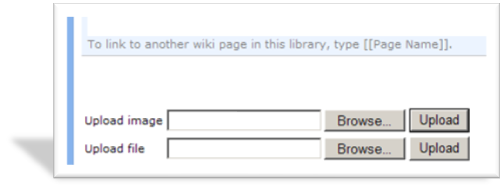
 As always, you have to install the solution, and activate the WikiWebpart feature for you Sitecollection as described in
Updated WikiWebpart + Tool to install it.
As always, you have to install the solution, and activate the WikiWebpart feature for you Sitecollection as described in
Updated WikiWebpart + Tool to install it.
The Webpart will detect an existing picture and document library, and use it. If you have multiple libraries on your website, you can configure which one to use in the Webpart properties.
Enabling sessionState
The sessionState allow you to store information not in the ViewState, but in the HttpSession object. See MSDN.
To enable the sessionState, you will have to modify your web.config. All lines which need to be modified, are within the <system.web> tag:
In the default settings, the httpModule for the session state is commented out. We will simply remove the “<!–” and “–>” around the line.
1: <httpModules>
<pre style="padding-right:0px;padding-left:0px;font-size:8pt;padding-bottom:0px;margin:0em;overflow:visible;width:100%;color:black;border-top-style:none;line-height:12pt;padding-top:0px;font-family:consolas, 'Courier New', courier, monospace;border-right-style:none;border-left-style:none;background-color:#f4f4f4;border-bottom-style:none"><span style="color:#606060"> 2:</span> <span style="color:#0000ff"><</span><span style="color:#800000">clear</span> <span style="color:#0000ff">/></span></pre>
<pre style="padding-right:0px;padding-left:0px;font-size:8pt;padding-bottom:0px;margin:0em;overflow:visible;width:100%;color:black;border-top-style:none;line-height:12pt;padding-top:0px;font-family:consolas, 'Courier New', courier, monospace;border-right-style:none;border-left-style:none;background-color:white;border-bottom-style:none"><span style="color:#606060"> 3:</span> ...</pre>
<pre style="padding-right:0px;padding-left:0px;font-size:8pt;padding-bottom:0px;margin:0em;overflow:visible;width:100%;color:black;border-top-style:none;line-height:12pt;padding-top:0px;font-family:consolas, 'Courier New', courier, monospace;border-right-style:none;border-left-style:none;background-color:#f4f4f4;border-bottom-style:none"><span style="color:#606060"> 4:</span> <span style="color:#0000ff"><</span><span style="color:#800000">add</span> <span style="color:#ff0000">name</span><span style="color:#0000ff">="Session"</span> <span style="color:#ff0000">type</span><span style="color:#0000ff">="System.Web.SessionState.SessionStateModule"</span><span style="color:#0000ff">/></span></pre>
<pre style="padding-right:0px;padding-left:0px;font-size:8pt;padding-bottom:0px;margin:0em;overflow:visible;width:100%;color:black;border-top-style:none;line-height:12pt;padding-top:0px;font-family:consolas, 'Courier New', courier, monospace;border-right-style:none;border-left-style:none;background-color:white;border-bottom-style:none"><span style="color:#606060"> 5:</span> ...</pre>
<pre style="padding-right:0px;padding-left:0px;font-size:8pt;padding-bottom:0px;margin:0em;overflow:visible;width:100%;color:black;border-top-style:none;line-height:12pt;padding-top:0px;font-family:consolas, 'Courier New', courier, monospace;border-right-style:none;border-left-style:none;background-color:#f4f4f4;border-bottom-style:none"><span style="color:#606060"> 6:</span> <span style="color:#0000ff"></</span><span style="color:#800000">httpModules</span><span style="color:#0000ff">></span></pre>
Development Overview
Display all my alerts update
With this update the problem that SPContext.Current.Web.CurrentUser is sometimes null is solved. Additionally there are lots of information written to the ULS logs, if you have configured your farm to log information with the level “Monitorable”
Updated FileserverAccess Webpart
I have updated my FileserverAccess Webpart.
- added danish language support (thx to Anja)
- performance tuning
fully qualified assembly?
In many occasions you have to specify the class as fully qualified name. I always forget how to do so.
[namespace].[classname], [assemblyname], Version=[version], Culture=[culture], PublicKeyToken=[token]
Now I know where to look at, if I stumble across the fully qualified name 🙂
Flexible Migration – SharePoint 2003 nach 2007
Ein wenig Werbung sei auch erlaubt. Ich habe ein Tool für die Migration von SPS 2003 nach MOSS 2007 geschrieben:
Die Migrationswege von 2003 nach 2007 auf Basis der Herstellertools erweisen sich in der Praxis meist aus unterschiedlichen Gründen als unzureichend: Quell-und Zielsystem sollen unterschiedliche Strukturen aufweisen, MOSS 2007 wurde schon parallel in Betrieb genommen, die Migration soll nicht ad-hoc passieren, Migrationen von gesamten Datenbanken schlagen fehl oder sind komplex.