Update to the “My Alerts” Webpart
I’ve made a small update to the My Alerts Webpart.
The update improves SharePoint 2010 support.
I’ve made a small update to the My Alerts Webpart.
The update improves SharePoint 2010 support.
A long time ago, I posted a program which will hit all your sites. With parameters you can specify to hit all sites within a sitecollection.
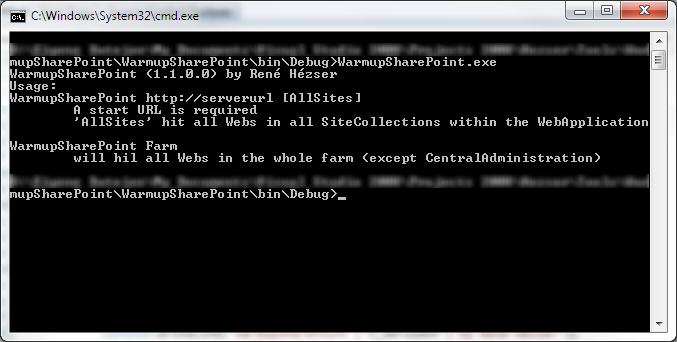
This program has been updated. You can not omit a start Url, and specify “Farm” as parameter. This way, all sites in all sitecollections in all webapplications in all… 🙂 will be warmed up.
The warmup will use a HttpRequest to query all homepages. It will not hit every page in the pages libraries, but hitting each web is sufficient for most scenarios.
One of the first things I used to tell guys new to SharePoint development is: Never ever name the folder of your feature “Feature1”. If you create a solution with WSPBuilder, or did some time ago with VS 2008, you have to rename the folders immediately!
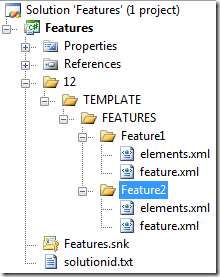
This is how a typical SharePoint project looks like, if you create features. I guess most of us have used the mighty WSPBuilder (
http://wspbuilder.codeplex.com) for developing with SharePoint.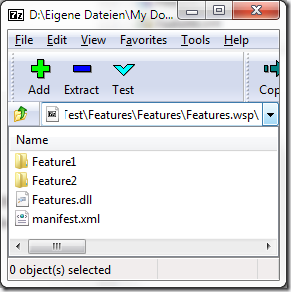
To be able to use the ISE for SharePoint, you can configure it to load the SharePoint cmdlets automatically.
Scot Hillier wrote a great article about it. Read “Setting up PowerShell ISE for SharePoint 2010”.
If you only want to use the SharePoint cmdlets once, you can register them with this two lines:
If ((Get-PSSnapIn -Name Microsoft.SharePoint.PowerShell -ErrorAction SilentlyContinue) -eq $null )
{ Add-PSSnapIn -Name Microsoft.SharePoint.PowerShell }
“v5.master” is a simple HTML5 master page designed for SharePoint 2010. It makes good use of the amazing new features of both HTML5 and CSS3, including CSS3 media queries. The master page is extremely simplistic in nature, and is truly meant to serve as a framework for building your own SharePoint 2010 customizations.
Here comes some good news for SharePoint and HTML 5. If you want to build your masterpage for HTML 5, you can: http://kyleschaeffer.com/sharepoint/v5-responsive-html5-master-page/
Here is another “watch out” for using the SharePoint object model.
SPUrlUtility.CombineUrl(web.Url, string.Empty)
The line above will throw an exception, as CombinUrl doesn’t like empty strings. 🙂
The latest updates can be found on this technet website: http://technet.microsoft.com/en-us/sharepoint/ff800847
I was looking for the August 2011 updates. They are not released yet. But I found an interesting text on the page:
The packaging of cumulative updates changed as of August 31, 2011. The following packages are provided for cumulative updates:
- SharePoint Foundation 2010
- SharePoint Foundation 2010 + SharePoint Server 2010
- SharePoint Foundation 2010 + SharePoint Server 2010 + Project Server 2010
As a result of the new packaging, it is no longer necessary to install the SharePoint Foundation cumulative update and then install the SharePoint Server cumulative update.
Recently I was trying to fetch a SPField from a SPWeb object. I had SharePoint 2010, so I decided to use the new SPFieldCollection.TryGetFieldByStaticName() Method.
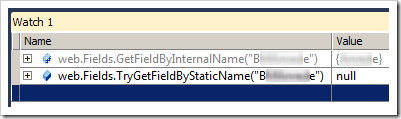
You can imagine how surprised I was, that I couldn’t get the field I was looking for. What do we learn? Well, the StaticName of an SPField is not necessarily the InternalName!
Here is a link to the MSDN about SPField.StaticName: http://msdn.microsoft.com/en-us/library/microsoft.sharepoint.spfield.staticname.aspx
If you don’t know ContentTypeBindings, take a short look at: http://msdn.microsoft.com/en-us/library/aa543598.aspx
“Content type binding enables you to provision a content type on a list defined in the onet.xml schema.”
So we can assign content types to newly created lists. That’s cool 🙂 The ContentTypeBinding feature can, of coarse, contain multiple content types which are bound to multiple lists. Like this:
<Elements xmlns="http://schemas.microsoft.com/sharepoint/">
   <ContentTypeBinding
      ContentTypeId="0x0100yourGuid"
      ListUrl="Pages" />
   <ContentTypeBinding
      ContentTypeId="0x0100anotherGuid"
      ListUrl="Pages" />
   <ContentTypeBinding
      ContentTypeId="0x0100yetAnotherGuid"
      ListUrl="Lists/YourList" />
</Elements>
There is however, a limitation! Do not configure more then one ContentTypeBinding feature for a newly created page! You will get a save conflict Exception, when you provision a new web.
The SP1 has been released. Check out all links here: http://blogs.technet.com/b/office_sustained_engineering/archive/2011/06/28/announcing-office-2010-and-sharepoint-2010-service-pack-1-availability.aspx
With Alternate Access Mappings you add more URLs to a SharePoint webapplication.
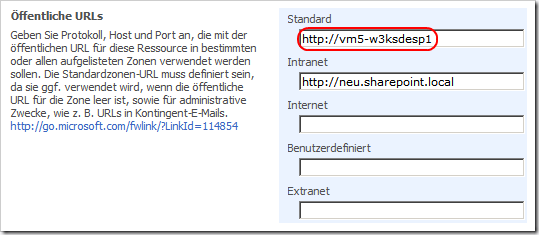
If you plan to use an alternate URL, you should use only the default URL in rules for a search scope. Otherwise the scope will not contain any items.
As the title stats, with SP 2010 a click on the the icon of a listview Webpart does not open the document. This was the default behavior in the previous SharePoint version. Microsoft has realized this, and posted a knowledgebase article to get back the expected click behavior.
http://support.microsoft.com/kb/2457975/en-us?sd=rss&spid=14944
The article shows you how to create a new XSLT file, which adds a link tag around the img tag of the icon.
By now, you probably know that the modal framework from SharePoint 2010 is a great thing 🙂
In case you need to find out if the context is within a modal dialog, you can query for the URL parameter “IsDlg”.
if (Page.Request["IsDlg"] != null)
{
   // within a modal dialog
}
else
{
   // not within a modal dialog
}
Usually the size of the recycle bin is not relevant. But on development machines, you don’t want lots of files in there, which make your databases grow without actually used data.
What do you do? Go to the recycle bin, click on “Site Collection Recycle Bin”. The two stages of the recycle bin can be managed independently.
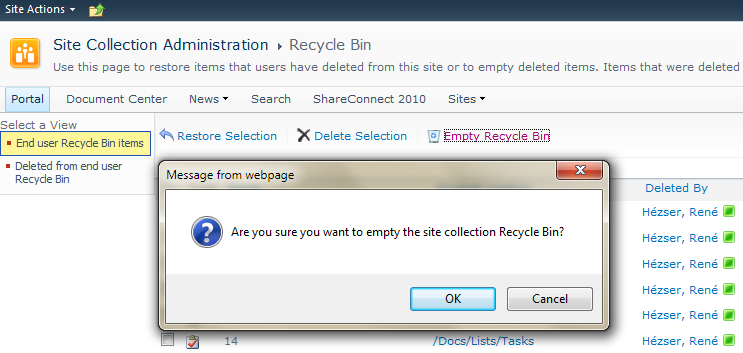
The two views on the left let you switch between the first- and second stage. All items from the first stage can be moved to the second stage with one click (+ 1 confirmation). But if the items are in the second stage, you can only delete 200 items at a time by selecting all and delete them in batches. An option to delete all items is missing (in the GUI).