How to use the SharePoint Web Controls
SharePoint brings its own controls, which can be used to display list items. In this article I want to show you how to use them in a Webpart. It  took me a while to figure this out, because the documentation is kind of incomplete L…
OK. Lets start. First lets find out which SharePoint Web Control belongs to which data type in SharePoint.
SharePoint Web Control
|
SharePoint data type Page Viewer Webpart with auto adjusting heightMart Muller wrote a great article about the page viewer Webpart. If you put the JavaScript onto the page which is displayed inside the page viewer Webpart, it will auto adjust its height. http://blogs.tamtam.nl/mart/SharePointPageViewerAutomaticallyAdjustIFrameHeight.aspx Write a SPFieldUserIf you have a list which contains a SPFieldUser field (with multiple selection), you can add users too it with the following code: using (SPSite site = new { using (SPWeb web = site.AllWebs[“Web”]) } Ajax Webpart displays Webservice dataIn this post I want to show how to create an Ajax Webpart, which receives its data from a Webservice – and until the data arrived – shows a status bar. As base for the Webpart, I took the one from Mark Collins and his great article http://sharethispoint.com/archive/2006/11/15/Build-web-parts-with-ajax.aspx. The approach is to render the Webpart with only a , and let the client – after it finishes querying the Webservice – fill the data into the previously created.
Webpart DevelopmentVisual Studio ExtensionsIf you want to write your own Webpart, you can start from scratch with a Class Library, or use the templates from http://www.microsoft.com/downloads/details.aspx?FamilyID=19f21e5e-b715-4f0c-b959-8c6dcbdc1057&DisplayLang=en The downside of this VS templates is, that they can only be used on a computer, which has SharePoint installed, and you cannot open a project created with the VS templates with a VS on which the templates are not installed. Server side controlsIshai Sagi wrote a great article about Webpart development. His article is about server side controls and data binding in Webparts. Extend the simple WebpartNow that we know how to create a simple Webpart, we want to add more functionality to it. Let us start with some Controls.
Declare a Controlpublic { private CreateChildControlsThis method creates the control. After the creation, we will be able to access the control from elsewhere, to modify its properties or its content. Deploy and Debug a Webpart to your SharePoint ServerTo deploy a Webpart to a SharePoint Installation, complete the 3 steps beneath:
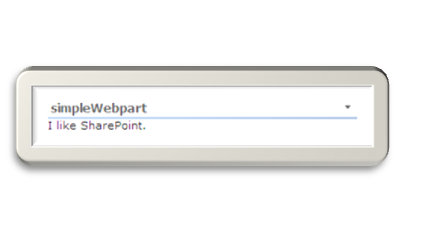
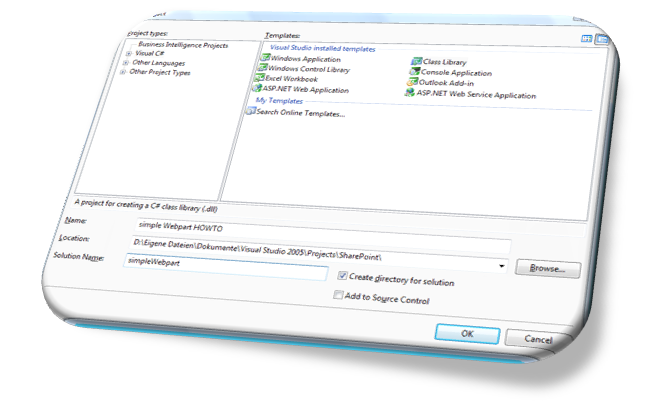
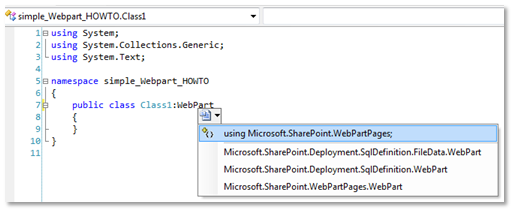
Copy the dll from your Webpart to the bin folder of a webapplicationCopy your dll to the bin folder of your IIS virtual server directory. In my case this is “C:\Inetpub\wwwroot\wss\VirtualDirectories\45079\bin”. Create a simple Webpart HOWTOIn this blog post, I want to show you how to create a simple Webpart. All you need is a Visual Studio 2005 (e.g. the express version) and of course SharePoint.
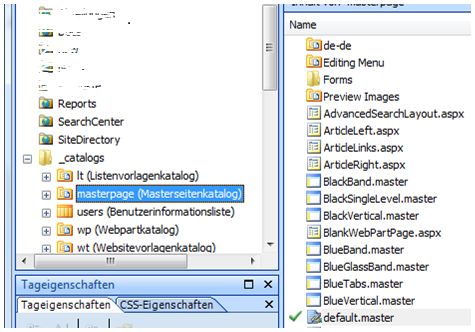
{ Wiki mit Bildern UpdateFalls bei der Benutzung des Webparts ein Fehler wie: Fehler bei der Anforderung des Berechtigungstyps Microsoft.SharePoint.Security.SharePointPermission, Microsoft.SharePoint.Security, Version=12.0.0.0, Culture=neutral, PublicKeyToken=71e9bce111e9429c. auftritt, muss der Trustlevel in der web.config auf Full gesetzt werden. Zum vollständigen Beitrag: http://www.hezser.de Update 23. Apr 2008: Ich habe eine neue Version bereitgestellt. Sending Email from SharePointYou can configure a task list, to send an email if you assign a task to somebody. This works fine if this somebody has an internal email address. If you happen to have an account inside the environment of the SharePoint Server, and configure it to have an external email address, sending an email to this account might fail. In the SharePoint Logs there is an entry: 03/12/2007 14:40:42.29 OWSTIMER.EXE (0x059C) 0x14E8 Windows SharePoint Services E-Mail 8gsf High #160009: Die E-Mail-Adresse ‘somebody@somewhere.tld’ ist unbekannt. (something like: the email address ‘somebody@somewhere.tld’ is unknown) SharePoint Designer, default.master and access deniedIf you want to modify the default.master masterpage in the root site of a sitecollection, you have to be a sitecollection owner. Otherwise you get an “access denied” error if you try to open, or check out the default.master.
SharePoint Event HandlerIf you want to modify the current listitem, the OnAfterChange Event will trigger again. You can avoid this by disabling the trigger before the update: this.DisableEventFiring(); Remove Server from FarmAfter adding a new Server to the SharePoint farm, I removed the old one. The central administration page was not accessible. It said “error 500” in the browser. By changing the admin port via “stsadm -o setadminport -port 12345” and back to the original port, I was able to regain access to the central administration page. Testlink to Yvonne for EBE Tracking Test: http://yvonneharryman.wordpress.com/2009/06/28/sharepoint-beacon-is-the-new-home-for-my-blog-regarding-sharepoint/ Remove Server from FarmAfter adding a new Server to the SharePoint farm, I removed the old one. The central administration page was not accessible. It only said “error 500” in the browser. By changing the admin port via “stsadm -o setadminport -port 12345” and back to the original port, I was able to regain access to the central administration page. Webpart, Properties and default valueIf you write a Webpart with custom properties, you have to take care of the default value. [WebBrowsable(true), Please do not specify a default value, which you might actually use. The default property value will not be saved, if you choose to configure it with the default value! |