How-To create a JavaScript tooltip / popup
 If you want to create a tooltip to show additional information, you can use the SharePoint functionality to do so. E.g. on a list of websites you could show the website’s description, if the user moves the mouse over the element.
The JavaScript which will show the “Open Menu” text is “MMU_PopMenuIfShowing(this);”. It is referenced on all SharePoint sites through the call to Init.js in the header.
Updated MyAlerts Webpart
Great Sourcecontrol
Are you looking for a Sourcecontrol for your projects? Well, I was. Here is where I ended up: SourceGear Vault. It will store the your sourcecode in a SQL table, use the IIS for access, and brings along a client and Visual Studio integration. What could you want more?
And the best of it, it is free!
Quote:
Somebody said that Vault is free for a single user. Is this true? Yes. Both Fortress and Vault are free for use by a single user. Simply install the product and do not enter any serial numbers at all. When no serial numbers are present, Fortress and Vault behave as if there is exactly one user license. Note that this free license does not apply when the product is used by more than one person. If you have two people who need to use Vault, you will need to purchase two initial licenses. If you enter a serial number containing only one license, then the product will still have exactly one license present.
Programmatically creating a SPFieldCalculated
As you might already know, you can create new fields with SPFieldCollection.AddFieldAsXml(string schema). The schema contains the formula for the calculated field. There are some points to take care of, before you can add the field:
- make sure your referenced fieldnames are the display names and not the internal field names
- the formula has to be in the English format
Changing the fieldnames is an easy task. If you read the schema from a field and want to create a new one with the same formula, you will get something like “=if(fieldA,1,2)”.
Wiki Webpart 2.0
The next generation Wiki Webpart is there! Sounds good J The (stupid) name remains, but the core has changed.
What is it?
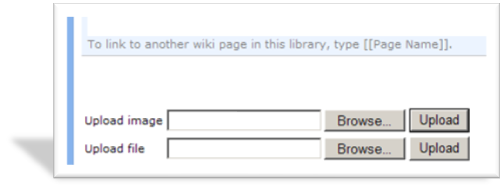
With the Wiki Webpart you can upload images and documents from a Wiki edit page into existing picture/document libraries. After the file has been uploaded, a link will be inserted into the Wiki Content.
This is either a or a tag, depending on the uploaded file.
TagCloud Webpart
Categorizing posts with keywords is not new. There are solutions which create a new column for your blog, where you can define categories.
 My Webpart will look in your posts for Technorati links. Many posts are tagged with Technorati links, so that you can look for a tag, and find posts on many blogs for this tag.
You can create Technorati links with the Live Writer, if you want to blog with it.
Picture Library and Exif data
As Jeremy Sublett wrote in his post Getting Date Information From Photos in SharePoint it would be great if SharePoint would respect the Exif data from a picture uploaded to a picture library. So I took his solution as starting point to wrap this functionality into a feature, which can be configured for each picture library.
So what does it do?
The “Date Picture Taken” value will be used from the Exif data of a picture after it has been uploaded.
Implement an update check
You have developed a Webpart or some other program, and want the user to be able to check for updates?
 In my case I want the user to check for updates for my Webparts.
If you click the “Check for updates” Button in the Webpart properties, the latest version from will be shown.
Set up an “Updates” list
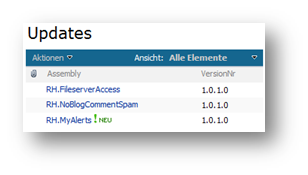
To find the latest version, I have set up a SharePoint list with two fields. The title always exists. I renamed it to be “Assembly”. The second column we need is the version. Here I store values which can be interpreted as a Version object.
Use SharePoint RSS feeds with absolute links
It is a annoying that RSS feeds do not display images correctly, if your feedreader is offline. The problem is, that the links generated by the SharePoint RSS feed api returns relative links instead of absolute links.
But there is a solution: –> Images Broken When Viewing Windows SharePoint Services RSS Feeds in Outlook
Here is a small update if you want to make a regular link absolute as well:
Adding a custom field type via code
Your custom field type can be added to a list in a browser easily. But how do you add a custom field type via code?
Here is my way:
- add a new field with the field type from which your custom field type derived
- change the field type of the new field to your own custom field type
1: // create new lookup field
<pre><font size=2><span class=lnum> 2: </span><span class=kwrd>string</span> newFieldName = fields.AddLookup(<span class=str>"fieldname"</span>, list.ID, web.ID, <span class=kwrd>false</span>); </font></pre><pre class=alt><font size=2><span class=lnum> 3: </span>var newField = fields.GetFieldByInternalName(newFieldName);</font> </pre>
<pre><font size=2><span class=lnum> 4: </span><span class=rem>// change field type to our own </span></font></pre><pre class=alt><font size=2><span class=lnum> 5: </span>newField.SchemaXml = newField.SchemaXml.Replace(<span class=str>"Lookup"</span>, <span class=str>"yourFieldType"</span>);</font></pre> </div>
**Update 4. Feb 2008**
The above solution will bring you a field with the type. But a much smoother way is to create a new field, which has the selected type. This way you don’t need to modify the schema of the field.<div class=csharpcode> <pre class=alt><span class=lnum><font size=2>1: </span>CustomFieldClass field = list.Fields.CreateNewField(<span class=str>"CustomFieldClass"</span>, <span class=str>"The name of the field"</span>);</pre>
</font>
<pre><span class=lnum><font size=2>2: </span>list.Fields.Add(field);</pre>
</font></div>
<div class=wlWriterEditableSmartContent id="scid:0767317B-992E-4b12-91E0-4F059A8CECA8:cdce64aa-cbde-49c7-a43c-69d782ebcc09" style="padding-right:0px;display:inline;padding-left:0px;padding-bottom:0px;margin:0px;padding-top:0px">Technorati Tags: <a href="http://technorati.com/tag/SharePoint" rel=tag>SharePoint</a>,<a href="http://technorati.com/tag/custom+field+type" rel=tag>custom field type</a></div> </div> </div> </div>
Tired of Comment Spam?
Do you have comments on your SharePoint blog activated? Anonymous users may leave comments which you have to approve for them to show up? Good.
The problem is that there are plenty spam posts which I don’t want to sort out manually.
Here comes my solution:
The RH.NoBlogCommentSpam SharePoint solution.
What does it do?
- Approve comments from non anonymous users (you can decide if logged in users, may post links)
- Recycle posts with comments in the subject / body (you can decide)
- Approve comments from anonymous if they do not contain links
Requirements
make sure you read them carefully!
Updated WikiWebpart
Since so many people asked for support to upload documents as well, I have implemented this functionality into my WikiWebpart. Now you can add pictures and files directly into your wiki by uploading them from the clients.
 As always, you have to install the solution, and activate the WikiWebpart feature for you Sitecollection as described in
Updated WikiWebpart + Tool to install it.
As always, you have to install the solution, and activate the WikiWebpart feature for you Sitecollection as described in
Updated WikiWebpart + Tool to install it.
The Webpart will detect an existing picture and document library, and use it. If you have multiple libraries on your website, you can configure which one to use in the Webpart properties.
Development Overview
Display all my alerts update
With this update the problem that SPContext.Current.Web.CurrentUser is sometimes null is solved. Additionally there are lots of information written to the ULS logs, if you have configured your farm to log information with the level “Monitorable”
Updated FileserverAccess Webpart
I have updated my FileserverAccess Webpart.
- added danish language support (thx to Anja)
- performance tuning